
January 26
2015


January 22
2015
Theory Thursday: The Steno Alphabet
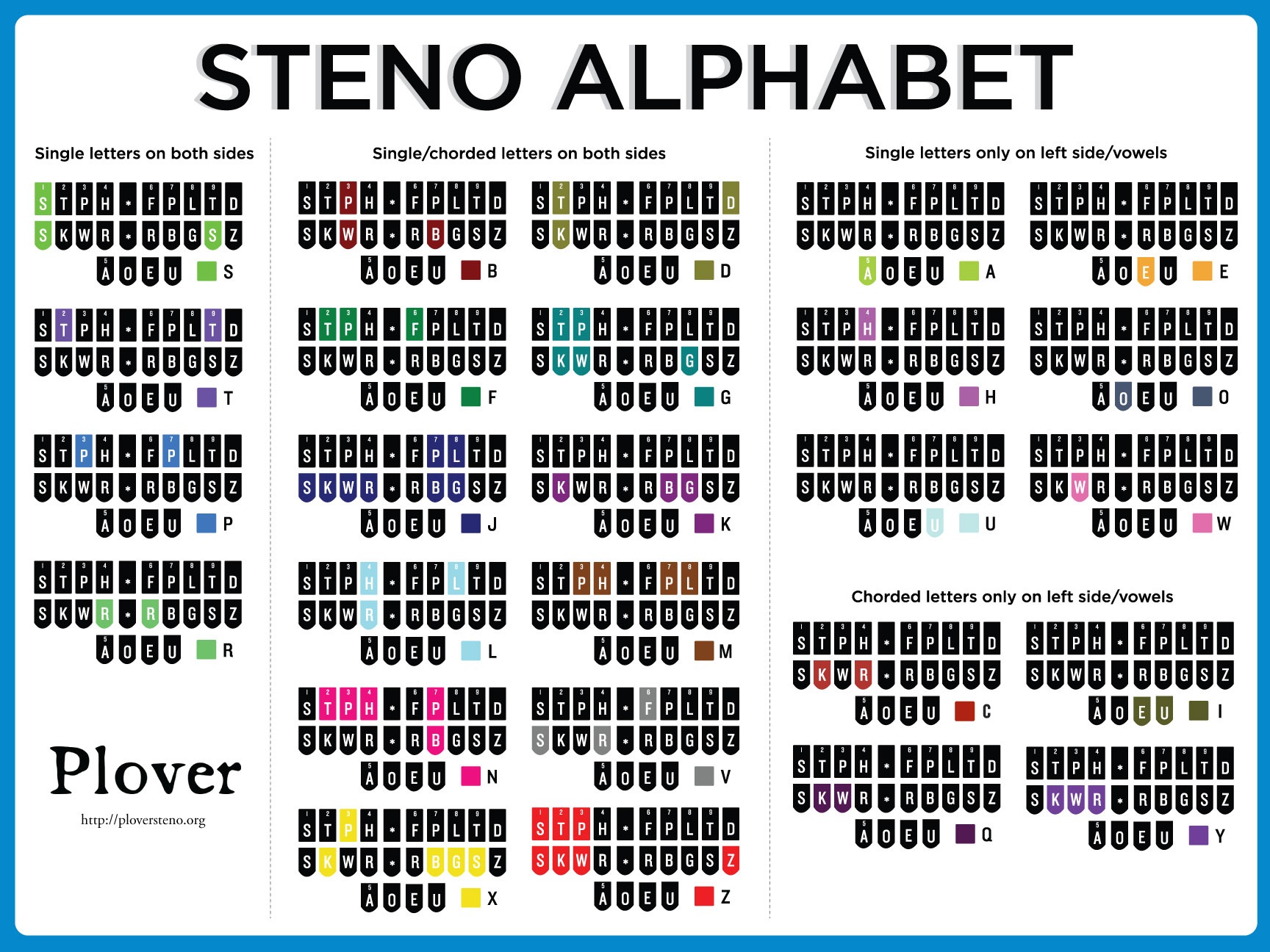

January 21
2015
Stenspiration™
 “Some people have greatness thrust upon them. Very few have excellence thrust upon them. They achieve it. They don’t achieve it unwittingly, by doing what comes naturally, and they don’t stumble into it in the course of amusing themselves. All excellence involves discipline and tenacity of purpose.” -John Gardner
Love, Speed & Accuracy,
Elsie Villega







January 20
2015
Court Reporter Spotted: Selma


January 19
2015
Case CATalyst: The Scan Define Command
 The scan define command in Case CATalyst allows you to fix the last untranlate/mistranslate in your translating file via your steno machine. This command eliminates the necessity of having to remove your hands from your steno machine to use your computer keyboard to correct an untranslated/mistranslate.
The scan define command can be defined in your Realtime Commands Dictionary or any other dictionary. The recommended dictionary entry is as follows: SKAN/SKAN= {Scan Define}
Writing the steno on your machine that activates the scan define command will open a power define dialog box which contains last untranslated/mistranslate in the steno field. You can then input your desired action for the edit sought.

January 19
2015
Medical Monday: Astragalus

January 16
2015
Friday Phrases


January 15
2015
Case CATalyst: Don’t Just Backup Your Dictionary, Also Backup Your System Files Case
System files is a key component to the operation of Case CATalyst software. Without system flies, you will not be able to translate, edit, read, or print a transcript via Case CAT.
Each Case CATalyst user must have one system files case in order to properly operate the software.
The system files case contains: User setting files, dialog settings, keyboard maps, your personal dictionary, index templates (for automatic indexing), layouts case, realtime commands, conflict database, phonetic table, power define codes, EZ speaker codes, and your personal word list.
Due to containing all of the aforementioned pertinent information, it would be wise to periodically backup your system files.

January 14
2015
Stenspiration™

January 13
2015